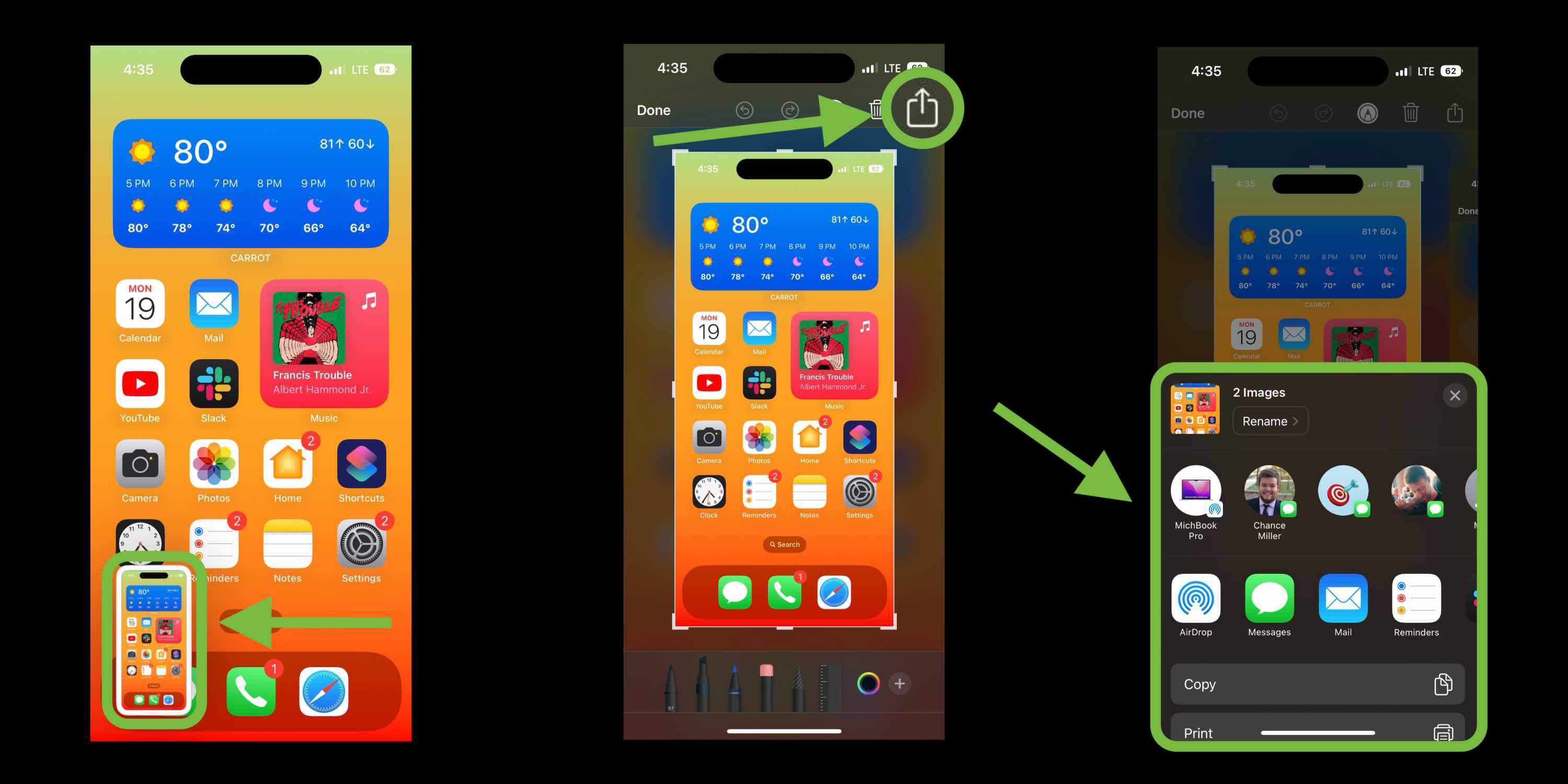
Ever been in that spot where you’re looking at a hilarious text or a recipe you know you’ll lose, and you realize you have no idea how to save it? Honestly, it happens to the best of us. Whether you’ve just grabbed the latest iPhone 17 or you’re still rocking a classic model with a physical Home button, the "how" has changed just enough over the years to be kinda confusing.
Basically, there isn’t just one way to do it anymore. Apple has tucked away some surprisingly cool shortcuts in the settings that most people never touch.
If you are wondering, how do i do a screenshot on my iphone, let’s break it down so you can stop fumbling with the buttons and start capturing what matters.
The Modern Method: iPhones with Face ID
If your phone doesn't have a round button at the bottom—think iPhone X through the iPhone 17 Pro—this is your go-to move. You’ve probably tried it and ended up locking your phone or turning the volume up by accident.
Here is the secret: it’s a quick "click and release."
- Locate the Side Button (on the right) and the Volume Up button (on the left).
- Press them both at the exact same time.
- Let go immediately.
If you hold them too long, your phone might think you’re trying to turn it off or call emergency services. Not ideal. When you do it right, the screen flashes white, and you’ll see a little thumbnail pop up in the bottom-left corner.
The iOS 26 Twist
If you're running the latest iOS 26 software, things might look a little different. Apple recently introduced a "Full-Screen Preview" mode. Instead of a tiny thumbnail, your screenshot might take over the whole screen immediately, showing you "Visual Intelligence" options.
It’s actually pretty smart—it can recognize a flyer in your photo and offer to add the date to your calendar automatically. But, if you hate it and want the old thumbnail back, you can go to Settings > General > Screen Capture and toggle off Full-Screen Previews.
The Old School Way: iPhones with a Home Button
Maybe you’re using an iPhone SE or an older model like the iPhone 8. You still have that satisfying physical button at the bottom.
To take a screenshot here, you’ll press the Side Button (or the Top Button on really old models) and the Home Button simultaneously. Again, just a quick tap. The flash happens, the sound of a camera shutter clicks, and you're good.
Taking a Screenshot Without Any Buttons
Buttons break. Or sometimes, your hands are full. Or maybe you just want to feel like you're living in the future. Apple has two "secret" ways to do this that are life-changers once you set them up.
The Magic "Back Tap"
This is my personal favorite. You can literally just knock on the back of your phone like it's a door to take a photo of your screen.
- Open Settings.
- Go to Accessibility and then Touch.
- Scroll all the way down to Back Tap.
- Pick Double Tap and set it to Screenshot.
Now, just tap the back of your phone twice with your index finger. It works through most cases, too, unless you have one of those ultra-armored bricks.
Use Your Voice
"Hey Siri, take a screenshot."
That’s it. If Siri is enabled, she’ll handle the heavy lifting. This is a lifesaver when you’re following a DIY tutorial and your hands are covered in paint or flour.
The "Full Page" Trick (Scrolling Screenshots)
Most people don't realize you can capture an entire webpage or a long PDF in one go. You don't have to take five separate screenshots and hope they line up in your camera roll.
First, take a normal screenshot. Tap that little thumbnail in the corner before it disappears. At the top of the editing screen, you’ll see two tabs: Screen and Full Page.
Tap Full Page.
On the right side, you'll see a long preview bar. You can scroll through the whole thing, crop out the parts you don't need, and save it. Pro tip: These usually save as PDFs to your Files app rather than your Photos app, so don't panic when you can't find it in your gallery.
Troubleshooting: Why It Isn't Working
Sometimes, you press the buttons and... nothing. It’s maddening.
First, check if you’re in an app that blocks screenshots. Some streaming apps or "incognito" modes in browsers won't let you capture the screen for copyright or privacy reasons. If the screen comes out black, that's why.
Another common issue in 2026 involves the new Visual Intelligence features. If your phone feels laggy when you screenshot, it might be struggling to process the AI data on the page. Try turning off Automatic Visual Look Up in the Screen Capture settings if you don't use it.
Lastly, if your buttons are sticky or unresponsive, the AssistiveTouch feature is your best friend. Go to Settings > Accessibility > Touch > AssistiveTouch and turn it on. You’ll get a little floating gray circle on your screen. You can customize the "Top Level Menu" to include a screenshot button. One tap on the screen, and you're done.
Handling Your Captures Like a Pro
Once you've mastered how do i do a screenshot on my iphone, the next step is managing the clutter.
If you tap the thumbnail after taking a shot, you can use the Markup tools to circle something or hide private info with the pen tool. When you’re done, tap Done.
Instead of just saving everything to your photos, try the Copy and Delete option. It’s a game-changer. It puts the image on your clipboard so you can paste it into a text or an email, but it doesn't clog up your library with 400 random images of memes you've already sent.
What's Next?
- Check your settings: Go to Settings > General > Screen Capture to see if you prefer the new iOS 26 full-screen mode or the classic thumbnail.
- Test Back Tap: Set up the double-tap shortcut to see if it fits your workflow better than the button combo.
- Organize: Open your Photos app, go to Albums, and scroll down to Media Types. Apple automatically puts every screenshot in its own folder there so you can find them (or bulk delete them) in seconds.